Building a WordPress website does not require purchasing dozens of software tools, subscribing to expensive recurring services, or possessing advanced computer science degrees. Because the web development industry is saturated with marketing campaigns promoting endless proprietary extensions, prospective site creators often feel overwhelmed by the sheer volume of products presented as "mandatory."
In reality, a functional, professional WordPress website can be built upon a relatively compact technical foundation. Everything you add beyond that core foundation depends entirely on your specific website goals—whether you are publishing a personal blog, showcasing a professional portfolio, operating a local business portal, or launching a high-volume e-commerce storefront.
To make smart decisions and avoid unnecessary expenditures, it helps to categorize website components into three practical tiers:
- Essential: The absolute foundational building blocks without which a self-hosted website cannot operate on the public internet.
- Strongly Recommended: Core operational practices and services—such as automated backups, security hygiene, and basic performance tuning—that ensure long-term stability and reliability.
- Optional & Situation-Dependent: Specialized add-ons, premium plugins, business mailboxes, and analytics suites that provide immense value for specific business models, but remain entirely non-essential for basic publishing.
This guide provides an objective, step-by-step overview of what you actually need to build and operate a WordPress website, distinguishing core technical prerequisites from marketing upsells.
What Do You Need at Minimum?
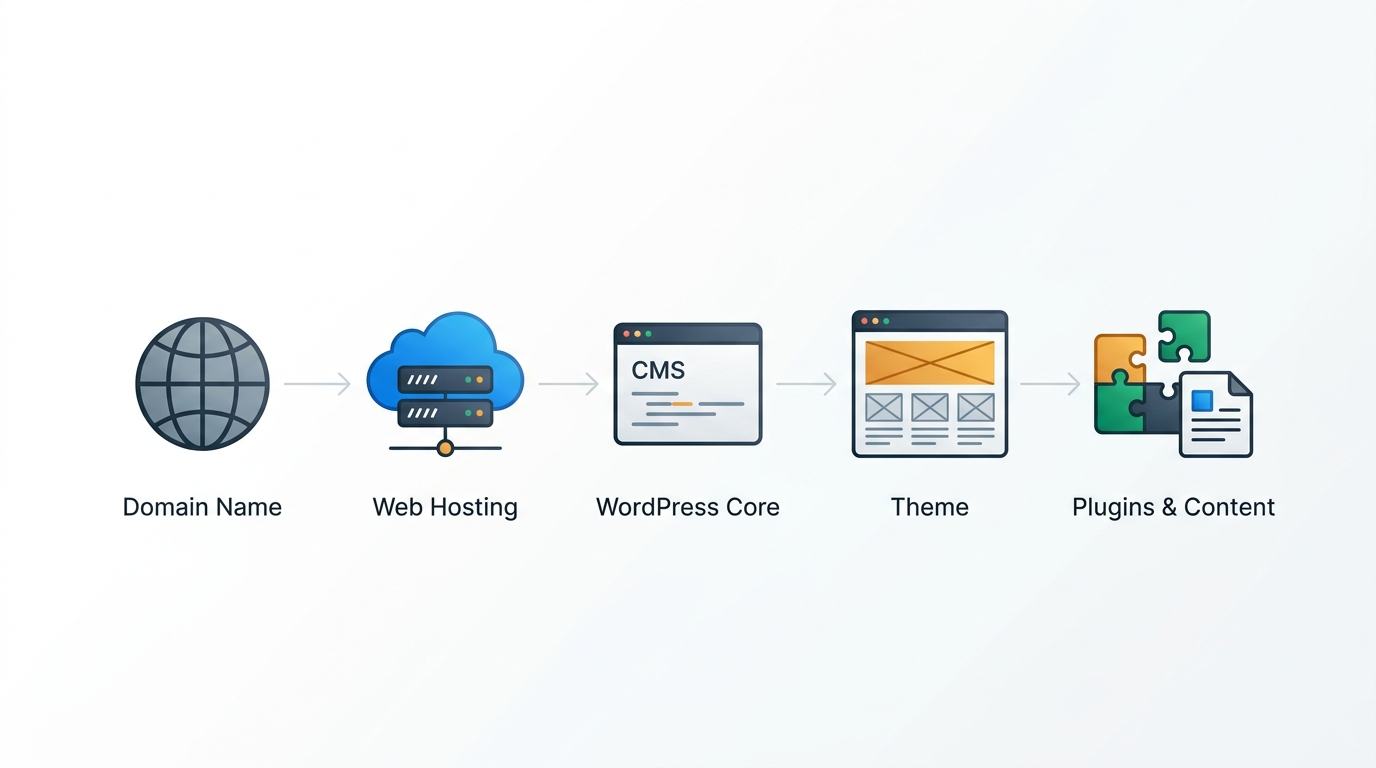
At its absolute bare minimum, launching a public self-hosted WordPress website requires five interconnected elements:
Your website's digital address (such as example.com) that visitors enter into web browsers to find your site.
The connected server environment where your website's files, PHP code, image assets, and database are hosted and served 24/7.
The free, open-source Content Management System (CMS) that manages your content, user permissions, and website settings.
The visual template that controls the aesthetic layout, typography, navigation menus, and responsive design of your site.
The actual substance of your site: written pages, articles, photography, contact details, and messaging that provides value to visitors.
Notice what is absent from the bare-minimum list: third-party plugins. While nearly all real-world WordPress sites eventually install a few plugins for tasks like forms or backups, WordPress natively includes blogging, page creation, media management, user roles, and full block-based site editing out of the box.
1. A Domain Name
A domain name represents your digital identity and serves as the human-friendly routing label for your website. Without a domain name, visitors would need to type an obscure numeric IP address (such as 192.0.2.1) into their browser to reach your server.
When you register a domain name (such as yourbrand.com), you are leasing the exclusive right to direct that name across global nameservers for a specified duration—typically one to ten years. You manage this lease through an ICANN-accredited domain registrar.
Key domain concepts to keep in mind include:
- Domain Registration vs. Web Hosting: Registration reserves the name; hosting provides the server storage. They are two distinct services, even if purchased during the same checkout flow.
- Renewal Pricing: The promotional price for the first year is frequently discounted, but ongoing annual renewals revert to standard rates. We explain this in detail in our guide on how to choose a domain registrar.
- Domain Privacy: Protects your personal name, address, and phone number from public registry directories. Many modern registrars include this free for eligible extensions, while others charge annual fees.
- DNS Management: The zone editor that points your domain to your web host (via A records or nameservers) and routes corporate email (via MX records).
To review transparent registrars that include free lifetime privacy protection, explore our comprehensive domain registrars comparison.
2. Web Hosting
If your domain name is your website's mailing address, web hosting is the physical property where the building stands. WordPress is a dynamic, server-side web application written in PHP that reads and writes data to a relational database (MySQL or MariaDB). To function, WordPress requires an active server environment running 24 hours a day, connected to high-speed internet backbones.
According to official WordPress.org server requirements, running modern WordPress reliably requires a server supporting PHP version 7.4 or higher (with PHP 8.1+ recommended for performance and security), MySQL version 8.0 or greater (or MariaDB version 10.5+), and HTTPS support.
Shared Hosting
Multiple customer websites share CPU, RAM, and disk storage on a single physical machine. It is the most economical starting point for new blogs and small brochure websites.
Managed WordPress Hosting
A hosting stack fine-tuned specifically for WordPress. Providers handle server-level caching, automated WordPress updates, staging sites, and daily backups.
Cloud & VPS Hosting
Provides dedicated, isolated virtual compute instances (CPU cores and RAM) with scalable resources, ideal for high-traffic sites and dynamic WooCommerce stores.
No single hosting tier is universally superior for every user. A personal blog receiving 500 visitors per month has fundamentally different hosting requirements than an e-commerce shop processing concurrent checkout transactions. For a structured breakdown of server specifications, caching architectures, and renewal terms, consult our detailed guide on how to choose the best web host or browse our web hosting comparisons.
3. WordPress
WordPress itself is the core Content Management System (CMS) that coordinates your site's functionality. It provides the administrative dashboard where you write blog posts, create pages, upload images, manage navigation menus, configure site settings, and assign user permissions.
When people talk about WordPress, it is vital to distinguish between two distinct platforms that often cause confusion for beginners:
Self-Hosted WordPress (WordPress.org)
The free, open-source software you download from WordPress.org and install on your own independent web hosting server. You retain 100% ownership of your files and database, with unrestricted freedom to install any theme, plugin, or custom code. This guide focuses primarily on this self-hosted model.
Hosted WordPress (WordPress.com)
A commercial SaaS hosting service operated by Automattic. It packages the WordPress software into bundled subscription tiers. While convenient for beginners, lower-tier plans restrict custom plugin and theme installations unless you subscribe to higher-priced business tiers.
For maximum flexibility, ownership, and cost predictability, most businesses, content creators, and developers choose self-hosted WordPress from WordPress.org. Most modern hosting providers offer automated "one-click" WordPress installers that set up the software, create the MySQL database, and establish your administrator login credentials within a couple of minutes.
4. A WordPress Theme
While the WordPress core manages your underlying data and administrative functions, your theme determines the visual presentation and frontend layout of that data. A theme governs typography, color palettes, page headers, footers, blog post templates, archive layouts, and mobile responsiveness.
Every WordPress installation must have at least one active theme. WordPress includes standard default themes (such as Twenty Twenty-Four) automatically, but you can choose from thousands of community and commercial options.
There is a common misconception that free themes are inferior or unsafe. In reality, themes listed in the official WordPress.org Theme Directory undergo rigorous security audits and strict code reviews before acceptance. Modern multipurpose free themes—such as Astra, GeneratePress, and Kadence—offer exceptional performance, accessibility, and customization.
Commercial or premium themes are primarily valuable when you require specialized e-commerce features (such as built-in AJAX product filters), niche-specific design templates, or direct ongoing technical support from theme developers. Explore our curated showcase of responsive templates in the WordPress themes directory.
5. WordPress Plugins
Plugins are modular software packages written in PHP that seamlessly integrate with WordPress, extending its capabilities and adding features that are not part of core software. Just as mobile applications add capabilities to a smartphone, plugins expand what your website can accomplish.
Common plugin use cases include:
Contact Forms
Enables visitors to send messages securely without revealing your raw email address to automated web scrapers.
E-Commerce
Plugins like WooCommerce transform WordPress into a full online store with product catalogs, shopping carts, and checkout gateways.
Performance & Caching
Generates static HTML files and minifies scripts to reduce server load and accelerate page rendering.
SEO Helpers
Assists in formatting title tags, custom meta descriptions, structured schema markup, and XML sitemaps.
Off-Site Backups
Automates regular database and file snapshots, dispatching encrypted copies to external cloud storage.
Memberships & Access
Restricts premium content behind member logins, subscriber paywalls, or digital course modules.
A vital principle for WordPress longevity is discipline: install only plugins that fulfill a genuine operational necessity. Installing excessive plugins, or using unmaintained extensions from untrusted sources, can introduce security vulnerabilities, database bloat, and software version conflicts. For vetted recommendations across key categories, view our curated WordPress plugins guide.
6. SSL / HTTPS
Hypertext Transfer Protocol Secure (HTTPS) encrypts communication between a visitor's web browser and your web server using an SSL/TLS digital certificate. When active, visitors see a secure connection padlock in their browser address bar, ensuring that data transmitted during page visits cannot be intercepted or modified by malicious network intermediaries.
HTTPS is an indispensable technical requirement for all modern websites:
- Data Protection: Encrypts contact form submissions, login credentials, session cookies, and financial transactions.
- Browser Warnings: Modern web browsers (including Chrome, Safari, Edge, and Firefox) flag non-HTTPS websites with prominent "Not Secure" warnings, which immediately damages visitor credibility.
- Modern Web Standards: Essential web technologies—such as HTTP/2 and modern browser service workers—require HTTPS connections to function.
Historically, SSL certificates were costly annual purchases. Today, the non-profit certificate authority Let's Encrypt provides free, automated SSL certificates globally. Most reputable web hosts automatically issue and renew Let's Encrypt certificates with a single click in your hosting control panel. Be wary of hosts that attempt to charge high annual fees for basic standard SSL certificates.
7. Website Content
Technical infrastructure alone does not create a functional website; content is the actual reason people visit your digital property. Before or immediately following technical installation, you need to prepare the essential copy, media, and structural elements that convey your message.
Core content requirements vary by site purpose, but most websites require the following baseline pages:
Homepage
Clearly articulates what your organization or publication offers, who it serves, and what primary action a visitor should take next.
About Page
Establishes credibility, background, expertise, and the editorial or business mission behind the website.
Contact Page
Provides a functional inquiry form, official business email, physical address if applicable, and response expectations.
Legal & Policy Pages
A clear Privacy Policy explaining how user data is collected and managed, alongside Terms of Service and affiliate or commercial disclosures where applicable.
Preparing written copy, optimized web photography, and a concise navigation structure prior to launching saves considerable time and prevents you from becoming bogged down in design tweaks without substantive material to present.
8. Business Email
A business email address matches your custom domain name (for example, hello@yourdomain.com or support@yourdomain.com) rather than relying on a generic free webmail service like Gmail or Yahoo.
While business email is not technically required for your WordPress website to run, it is strongly recommended for professional credibility:
- Professional Trust: Clients, customers, and corporate partners treat inquiries originating from domain-branded email addresses with greater confidence.
- Transactional Deliverability: Configuring standardized email authentication records (SPF, DKIM, and DMARC) ensures notifications sent by your WordPress forms or order systems reach inboxes rather than spam folders.
- Separation of Personal and Commercial Data: Keeps business inquiries cleanly organized and distinct from personal correspondence.
Website owners generally have two options for business email: basic webmail provided through their hosting account (cPanel webmail), or dedicated enterprise cloud mailboxes such as Google Workspace or Microsoft 365. For business-critical correspondence, dedicated cloud mailboxes offer superior spam filtering, uptime, and separate infrastructure that won't be affected if your web hosting server experiences an issue.
9. Backups
A comprehensive backup strategy is your ultimate insurance policy. Software updates can conflict, human error can accidentally delete key pages, databases can corrupt, and servers can suffer hardware failure. Without a reliable, tested backup, recovering an unbacked website can mean rebuilding everything from scratch.
A complete WordPress backup must preserve two distinct components:
1. The MySQL Database
Contains all your written articles, page text, comments, user accounts, form entries, plugin settings, and site configuration data.
2. Physical Files & Media
Contains the WordPress core files, your installed theme templates, plugin files, and your wp-content/uploads directory where uploaded images and documents are stored.
While many web hosting companies provide automated server snapshots, relying exclusively on host-level backups creates a single point of failure. If your hosting account is suspended, hacked, or billing expires, your backups become inaccessible alongside the server. Employing a backup plugin or external service that exports encrypted backups to third-party cloud storage (such as Amazon S3, Google Drive, or Dropbox) guarantees true data ownership.
10. Website Security
Because WordPress powers over 40% of all websites globally, it is a frequent target for automated bots executing brute-force login attempts and scanning for known vulnerabilities in unpatched software. Fortunately, establishing robust security does not require complicated configurations or panic-driven add-ons.
Effective security is grounded in consistent operational hygiene:
- Strong, Unique Passwords: Utilize password managers to generate 20+ character passwords for administrator accounts and database users. Never use "admin" as your administrator username.
- Two-Factor Authentication (2FA): Require TOTP-based two-factor authentication for all administrative accounts, preventing unauthorized logins even if passwords are compromised.
- Timely Updates: Keep WordPress core, active themes, and plugins updated. According to security telemetry, the vast majority of WordPress intrusions exploit known vulnerabilities in abandoned or unpatched third-party plugins.
- Host-Level Firewalls: Choose hosting environments equipped with Web Application Firewalls (WAF) and server-level malware scanning to block malicious request traffic before it reaches PHP workers.
- Principle of Least Privilege: Assign user roles conservatively (e.g., Editor, Author, Contributor) rather than giving every team member full Administrator access.
11. Website Analytics
Analytics platforms record visitor interactions, giving you actionable data regarding how audiences find and navigate your website. While an analytics script is completely optional for technical operation, it provides invaluable feedback for growing an audience or measuring business outcomes.
Typical insights gained from website analytics include:
Traffic Volumes & Trends
Tracks total unique visitors, page views, and traffic patterns over daily, weekly, or monthly intervals.
Traffic Acquisition Sources
Reveals whether visitors arrive through organic search engines, social media platforms, direct bookmarks, or external referrals.
Top-Performing Content
Identifies which articles, product listings, or landing pages attract the highest engagement and time on page.
Conversion Milestones
Measures the completion of key business actions, such as newsletter sign-ups, inquiry form submissions, or completed e-commerce orders.
When choosing an analytics tool, consider visitor privacy and regulatory compliance (such as GDPR and CCPA). While Google Analytics 4 (GA4) remains the industry standard, privacy-focused, cookieless alternatives like Plausible or Fathom allow you to track essential traffic metrics without requiring complex cookie consent banners.
12. SEO Tools
Search Engine Optimization (SEO) encompasses the technical and content practices that help search engines understand your website and rank your pages for relevant user queries. WordPress is naturally well-structured for search engines out of the box, generating clean semantic HTML and standard permalink structures.
However, dedicated SEO tools and plugins assist with essential optimization tasks:
- Metadata Management: Allows you to set custom SEO title tags and compelling meta descriptions for each post and page to improve search result click-through rates.
- Automated XML Sitemaps: Generates and updates XML sitemaps that inform search engine crawlers whenever new content is published or updated.
- Social Sharing Cards: Formats Open Graph and Twitter Card tags to ensure attractive image previews when pages are shared across social channels.
- Structured Schema Markup: Adds standardized JSON-LD structured data (such as Article, BreadcrumbList, or FAQ schemas) to help search engines present rich search snippets.
It is critical to remember that an SEO tool is a technical utility, not a replacement for quality content. An SEO plugin cannot make thin or unhelpful content rank; its role is simply to ensure your valuable content is properly indexed and clearly presented to search engine crawlers.
13. Website Maintenance
Launching your website is the beginning of its lifecycle rather than the conclusion. Like a vehicle or a building, a WordPress website requires regular maintenance to remain secure, performant, and operational over time.
A sound monthly maintenance routine includes:
Applying Core, Theme, and Plugin Updates
Review and apply security patches and performance updates. For complex sites, test updates in a staging environment prior to pushing live.
Verifying Automated Backup Archives
Periodically verify that backup jobs are executing successfully and test a restoration to ensure archives are complete and uncorrupted.
Testing Contact Forms & Interactive Workflows
Submit a test inquiry through your contact forms or complete a test transaction to verify that notifications arrive as expected.
Monitoring Domain, Hosting, and SSL Renewal Dates
Ensure payment methods on file with your registrar and web host are current to avoid accidental service interruptions.
What Is Essential vs Optional?
To help you budget both time and money effectively, the table below provides a nuanced comparison of every major component, clarifying what is strictly mandatory versus what can be added later as your website expands:
| Component | Usually Needed? | Status |
|---|---|---|
| Domain Name | Yes | Essential |
| Web Hosting | Yes | Essential |
| WordPress Software | Yes | Essential |
| WordPress Theme | Yes | Essential |
| Website Content | Yes | Essential |
| SSL / HTTPS | Yes | Essential |
| Backups | Yes | Recommended |
| Security Hygiene | Yes | Recommended |
| WordPress Plugins | Varies | Selective |
| Business Email | Optional | Optional |
| Website Analytics | Optional | Optional |
| SEO Tools & Plugins | Optional | Optional |
What Does a WordPress Website Cost?
There is no single "standard" cost for a WordPress website. Because WordPress is modular and open-source, the total financial investment varies substantially based on your choices regarding hosting tiers, domain extensions, premium design assets, and commercial extensions.
Typical cost categories to account for include:
- Domain Name Registration: Common top-level domains (such as
.comor.org) typically range from $10 to $18 per year, whereas specialized TLDs (like.aior.io) carry higher annual registry fees. - Web Hosting: Entry-level shared hosting generally costs between $35 and $100 annually during initial terms, while specialized managed WordPress or cloud hosting can range from $15 to $50+ per month depending on server resource allocations.
- WordPress Core: Always $0. The software is free, open-source, and has no recurring subscription fees.
- Theme: $0 for reputable free themes from the WordPress repository; $40 to $80 as a one-time purchase or annual license for commercial themes with developer support.
- Plugins: Many sites run exclusively on free plugins. However, commercial e-commerce gateways, advanced form builders, or membership plugins typically range from $49 to $299+ per year per tool.
- Business Email: Free if using basic hosting webmail; $6 to $18 per user per month if subscribing to dedicated enterprise suites like Google Workspace or Microsoft 365.
A beginner can comfortably build and maintain an effective personal blog or brochure website for under $60 to $100 in their first year. Conversely, a growing commercial enterprise utilizing dedicated cloud infrastructure and specialized premium software should budget several hundred dollars annually.
What You Need Depends on the Type of Website
To clarify how these requirements combine in real-world scenarios, review these typical component configurations across five common website categories:
1. Business / Corporate Website
Designed to showcase company services, establish credibility, and generate client inquiries.
2. Editorial Blog / Content Publication
Focuses on long-form articles, categorized archives, author bios, and search visibility.
3. Online Store (E-Commerce)
Processes online orders, manages inventory catalogs, and handles financial checkout transactions.
4. Membership & Course Portal
Protects exclusive content, manages subscriber accounts, and delivers recurring digital course modules.
5. Portfolio / Creative Showcase
Highlights creative work, photography, case studies, and contact options for freelancers or agencies.
Common Mistakes to Avoid
When building a WordPress site for the first time, it is easy to stumble into common pitfalls. Avoiding these ten frequent missteps will keep your website fast, stable, and cost-effective:
1. Installing Excessive Plugins
Installing dozens of plugins simply to try minor visual effects adds database overhead, slows page load times, and increases the likelihood of plugin compatibility conflicts.
2. Choosing Hosting Solely on Introductory Teaser Rates
A promotional rate of $1.99/month can be misleading if renewal pricing jumps to $15.99/month upon renewal. Always check regular renewal rates before buying.
3. Neglecting Independent Off-Site Backups
Assuming your host's backup system is sufficient leaves you vulnerable if server access is lost or accounts are suspended. Maintain an independent off-site backup archive.
4. Using Pirated or "Nulled" Themes and Plugins
Downloading commercial software from unauthorized free repositories almost always injects hidden backdoors, spam redirects, and malware into your server environment.
5. Choosing a Theme Before Defining Website Requirements
Picking a theme purely on demo visual aesthetics rather than checking whether it supports your required features (e.g., e-commerce, custom post types) leads to redesign friction later.
6. Treating an SEO Plugin as an Automatic Ranking Tool
An SEO plugin is merely a configuration helper. It cannot substitute for high-quality, comprehensive editorial content, intuitive site architecture, and fast load speeds.
7. Failing to Plan Content and Navigation Structure
Starting visual layout design without knowing what pages you need or what copy you are displaying leads to disorganized, confusing visitor navigation.
8. Overlooking Mobile Usability and Viewport Testing
Over half of global web traffic originates on mobile devices. Always test your site across multiple mobile screen sizes rather than designing exclusively on desktop monitors.
9. Forgetting Domain Auto-Renewal and Account Alerts
Allowing payment methods to expire without auto-renewal alerts can cause your domain to enter expiration grace periods, resulting in unexpected website downtime.
10. Creating Critical Dependencies on Unmaintained Single-Purpose Plugins
Relying on obscure plugins maintained by single developers with no recent updates increases the risk that future WordPress core updates will break site functionality.
A Simple WordPress Website Setup Checklist
Use this interactive step-by-step checklist to guide your launch process from domain reservation to ongoing post-launch maintenance:
Interactive WordPress Setup Checklist
Frequently Asked Questions
Concise, factual answers to the most common questions regarding WordPress website requirements, tools, and setup costs:
Conclusion
Building a WordPress website does not require purchasing dozens of recurring tools or subscribing to expensive software bundles before writing your first post. At its core, the essential foundation consists of a small, reliable set of components: a memorable domain name, reliable web hosting, the free open-source WordPress software, a lightweight responsive theme, and high-quality content that serves your audience.
Everything you add beyond that foundation—whether custom business mailboxes, advanced e-commerce tools, off-site backup automations, or specialized membership plugins—should be adopted intentionally based on actual operational needs. Starting with a lean, well-structured setup gives you total ownership over your data, keeps recurring costs predictable, and provides a clear foundation that can scale smoothly as your website expands.
Review documented server specifications, transparent renewal terms, and technical features across verified providers.
View our side-by-side comparative analysis, pricing breakdowns, and editorial guides.