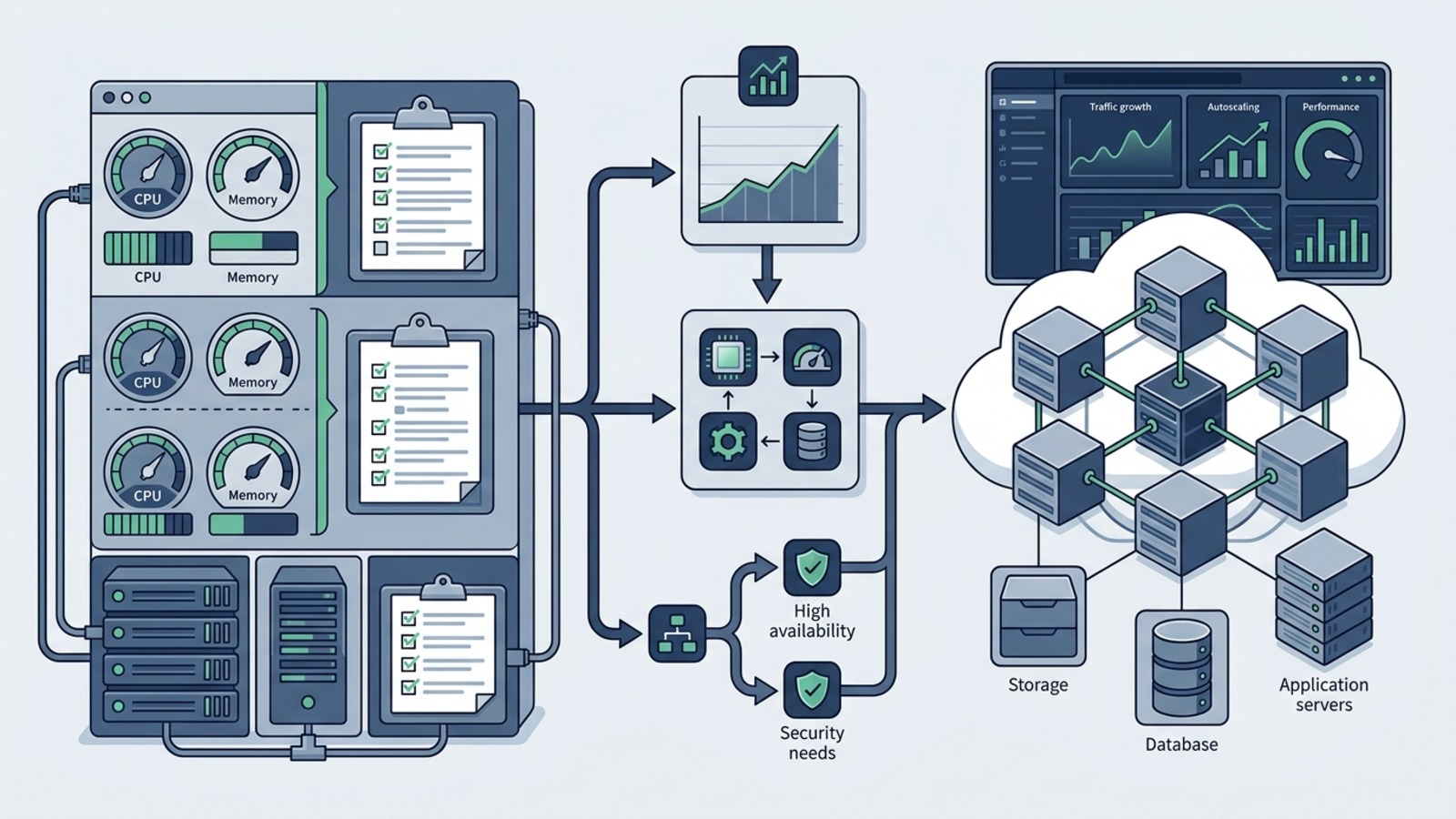
For many website owners, shared hosting is the natural starting point: it is accessible, cost-effective, and handles server administration automatically behind straightforward control panels. But as websites expand—accumulating content, traffic, customer transactions, or dynamic functionality—publishers often wonder: when does shared hosting stop being appropriate, and when should you move from shared hosting to cloud hosting?
The hosting industry frequently encourages site owners to upgrade prematurely, presenting cloud infrastructure as a universal panacea for every performance complaint. In reality, a slow website is often an application optimization problem rather than a hardware deficit. In this comprehensive guide, we examine the precise technical thresholds that distinguish genuine server bottlenecks from software issues, evaluate how dynamic workloads (such as WooCommerce) alter hosting demands, and provide an actionable, neutral framework to help you decide whether to optimize, upgrade plans, or migrate to a cloud environment.
The Short Answer
When an infrastructure transition is justified—and when it is not.
In short: you should consider moving from shared hosting to a cloud or VPS environment when your website consistently and verifiably reaches account-level resource constraints that cannot be resolved through reasonable application optimization, when your workload requires dedicated or isolated compute capacity, or when your business operations demand high horizontal or vertical scalability.
Key Takeaway
A hosting migration is not automatically necessary simply because a website feels sluggish. Sluggishness is frequently caused by unoptimized imagery, render-blocking scripts, unindexed database tables, bloated plugins, or missing page cache—issues that persist even on expensive cloud servers. A move to cloud infrastructure is appropriate when your server environment itself is the bottleneck, not when your application software needs basic hygiene.
First, Understand What "Moving to Cloud" Actually Means
Navigating industry terminology: shared, VPS, cloud VPS, managed cloud, and managed WordPress.
One of the greatest sources of confusion for website owners is that hosting providers do not use standardized product terminology. The word “cloud” is applied across radically different technical products. Before planning any migration, understand the spectrum of hosting architectures:
Shared Hosting
Multiple user accounts reside on a single physical machine, sharing system CPU, RAM, and disk I/O under strict account-level protective limits (such as CloudLinux LVE). The provider manages 100% of underlying server software and maintenance.
Standard VPS (Virtual Private Server)
A hypervisor partitions a physical server into dedicated virtual machines with assigned vCPU cores and RAM. Unmanaged VPS plans require you to configure the Linux OS, web server, and security firewalls manually via command line.
Cloud VPS & Compute Instances
Virtual machines provisioned on distributed cloud infrastructure networks (like DigitalOcean, AWS, Google Cloud, or Linode). Storage is separated from compute, allowing on-demand vertical resource resizing and high hardware fault tolerance.
Managed Cloud / Managed WordPress Hosting
A platform layer operating on top of cloud infrastructure that handles operating system updates, web server daemons, automated backups, staging environments, and caching layers for you, eliminating raw terminal administration.
For a foundational comparison of physical versus cloud architectures, review our companion guide on Shared Hosting vs. Managed Cloud Hosting: What's the Difference?.
Signs That Your Shared Hosting Plan May Be Reaching Its Limits
Tangible warning indicators: process throttling, error codes, and resource thresholds.
Shared hosting plans protect the broader server ecosystem by placing hard boundaries around each account. When your website consistently challenges these boundaries, specific operational symptoms emerge:
HTTP 508: Resource Limit Reached
In CloudLinux-powered environments, exceeding physical memory allocations, CPU time quotas, or entry processes results in explicit 508 errors delivered directly to visitors.
Database Query & Gateway Timeouts
Complex queries or unindexed database tables hit server execution time ceilings (e.g., 30–60 seconds), returning 504 Gateway Timeout or "MySQL server has gone away" errors.
PHP Worker & Entry Process Throttling
When all allowed simultaneous PHP processes (often 20–30 on shared tiers) are occupied with slow dynamic requests, new incoming visitors are placed in a queue or rejected with 503 Service Unavailable.
Scheduled Cron & Background Job Failures
Critical automated processes—such as publishing scheduled posts, syncing inventory, generating backups, or sending customer email notifications—fail due to memory or execution timeouts.
Note: Exact resource thresholds vary significantly between providers and plan tiers. Never assume a specific numeric percentage indicates an absolute migration requirement without consulting your hosting metrics dashboard.
A Slow Website Does Not Automatically Mean You Need Cloud Hosting
Diagnosing application inefficiencies, heavy plugins, and caching deficits before upgrading.
Upgrading your hosting plan will not repair an inefficient web application. If a WordPress site takes five seconds to generate a page because an active plugin executes 200 redundant database queries, migrating that exact site to a dedicated cloud server will merely cause it to execute those 200 redundant queries on more expensive hardware.
Common Application-Layer Causes of Sluggish Performance
- Missing Page Caching: Serving dynamic PHP on every single visit instead of pre-rendered static HTML via server-level caching or caching plugins.
- Bloated or Conflicting Plugins: Running dozens of active plugins that inject heavy JavaScript libraries and unindexed database queries on every page load.
- Heavy Visual Themes & Page Builders: Utilizing multipurpose themes loaded with complex nested div structures, inline CSS, and excessive font files. For guidance, see What to Look For in a WordPress Theme.
- Unoptimized Media: Loading 5MB uncompressed JPEG photography directly into mobile viewports instead of responsive WebP formats.
- Third-Party External Scripts: Multiple tracking pixels, ad networks, chat widgets, and social embeds blocking the main browser thread.
When Traffic Growth Starts to Matter
Analyzing traffic consistency, concurrency surges, and static versus dynamic request behavior.
Traffic metrics are often misunderstood. Website owners frequently believe that reaching 50,000 monthly visitors automatically demands a cloud server. In reality, traffic volume alone is far less important than traffic concurrency and request type:
Static Informational Traffic
On a personal blog, editorial publication, or brochure site, pages are identical for all anonymous visitors. When static page caching and a CDN are properly configured, 95% of incoming visits are served directly from RAM or edge nodes without waking up PHP. A quality shared plan can handle substantial traffic under this model.
Dynamic Concurrent Workloads
When 500 visitors arrive simultaneously following an email blast or social promotion and interact with search filters, form submissions, or personalized dashboards, each request executes dynamic PHP code and database queries. This high concurrency quickly exhausts shared hosting process pools, necessitating dedicated compute slices.
When WooCommerce May Change the Hosting Equation
Uncacheable checkout carts, database transaction volume, and operational scaling.
E-commerce websites operate under a fundamentally distinct architectural model. Unlike standard content sites, key parts of an online store—such as the cart, checkout, customer accounts, and real-time inventory checks—cannot be cached.
Why WooCommerce Strains Shared Hosting as Sales Expand
Every customer adding an item to their cart or processing a payment forces WordPress to query the MySQL database dynamically. If ten shoppers check out at the same time on a shared hosting account with limited PHP workers, database connections queue up, causing checkout lag or abandoned transactions. While a new store with a small catalog can comfortably launch on shared hosting, growing stores with high concurrent checkout activity frequently benefit from an isolated cloud instance.
For store architecture insights, see our dedicated guide on How to Choose a WordPress Theme for WooCommerce.
When Multiple Websites Share One Hosting Account
Resource contention among sibling domains within a single cPanel or hosting container.
Many shared hosting plans advertise “unlimited websites” or support multiple addon domains. However, what providers rarely emphasize is that all websites on that account share the exact same underlying resource quota.
If you host five client sites or three personal blogs on one shared plan, a sudden traffic spike or rogue plugin on Site A can exhaust the account's physical memory, triggering 508 Resource Limit errors across Sites B, C, D, and E simultaneously. When client work or revenue-generating properties are affected by neighboring sibling domains, splitting them into separate accounts or migrating to isolated cloud containers becomes essential.
When Predictable Resource Availability Becomes More Important
Contrasting shared resource pools with dedicated virtualized compute allocations.
On shared hosting, even with modern container isolation, the physical machine is shared with other accounts. While providers work diligently to prevent "noisy neighbors" from degrading overall server health, slight performance fluctuations can occasionally occur during peak server loads.
When a website reaches commercial maturity, predictability often matters as much as raw speed. On a cloud VPS or managed cloud instance, you receive dedicated virtual compute slices (such as 2 dedicated vCPUs and 4GB RAM) reserved exclusively for your workloads. This ensures that your response times remain uniform regardless of third-party activity.
When Scalability Becomes a Requirement
Adapting to seasonal campaigns, product launches, and expanding content catalogs.
Shared hosting plans are typically static: stepping up to a higher tier requires migrating accounts or waiting for administrative upgrades. Cloud hosting architectures, by contrast, are engineered for agility:
- Vertical Scaling: Increasing instance RAM or CPU cores temporarily during a Black Friday sale or product launch with minimal downtime.
- Block Storage Expansion: Attaching additional SSD or NVMe volumes as media libraries and databases expand without rebuilding server instances.
- Load-Balanced Clusters: Distributing HTTP traffic across multiple synchronized server instances for high-availability enterprise applications.
Remember: Cloud hosting does not automatically scale itself without proper configuration. Elastic auto-scaling requires specific architectural setups and monitoring policies.
When Server-Level Control Becomes Important
Custom PHP modules, Redis object cache daemons, and developer workflows.
Shared hosting environments enforce standardized server configurations to protect server-wide stability. This means you cannot install custom system daemons, modify low-level web server rules, or run arbitrary background worker services.
As development workflows mature, you may require tools such as Redis or Memcached for persistent object caching, Elasticsearch for advanced store search, custom Node.js or Python background services, or SSH root access for automated CI/CD deployment pipelines. These requirements point directly toward cloud or VPS environments. However, remember the trade-off: greater control introduces greater administrative responsibility.
When Managed Cloud May Be More Appropriate Than an Unmanaged VPS
Weighing infrastructure ownership against ongoing system administration overhead.
When moving away from shared hosting, many site owners are tempted by the low nominal cost of unmanaged cloud instances (like raw DigitalOcean Droplets or AWS EC2 instances). However, an unmanaged VPS arrives as an empty Linux operating system. You must manually install and maintain the web server, PHP runtimes, firewall rules, SSL renewals, automated backup scripts, and security patches.
Why Managed Cloud Services Are Popular
For businesses without a dedicated full-time systems administrator, managed cloud hosting bridges this gap. It pairs cloud compute power with a graphical control dashboard, automated 24/7 server monitoring, OS security patching, and platform-level support. You obtain the isolation and scalability of the cloud without spending hours managing Linux server administration.
When You Should NOT Move Yet
Scenarios where staying on your existing shared hosting plan remains the practical choice.
Staying on shared hosting is not a failure; for many projects, it is the most sensible, cost-effective, and low-maintenance decision. You should generally not move to cloud hosting if:
Check Your Hosting Account Before Upgrading
Gathering verifiable data from your hosting metrics dashboard.
Before committing to any infrastructure migration, inspect the empirical data provided in your current hosting account:
- CPU Usage (%): Does the chart show continuous flatlining at 100%, or brief occasional spikes that recover immediately?
- Physical Memory (RAM): Are you consistently exhausting allocated memory limits (resulting in memory allocation errors)?
- Entry Processes (EP): How many concurrent PHP scripts run simultaneously during traffic peaks?
- I/O & IOPS: Are disk read/write bandwidth throttles causing slow database query execution?
- Error Logs: Inspect
error_logfiles in your root directory to identify specific fatal errors or plugin execution loops.
The Difference Between a Resource Problem and a Software Problem
A diagnostic framework to isolate server hardware constraints from application bugs.
Resource Problem
Recurring 508 Resource Limit errors, verified memory exhaustion in host logs, and slow response times that occur exclusively during concurrent traffic peaks despite active caching.
Software Problem
Slow page generation even when only one visitor is browsing, unoptimized SQL queries identified by Query Monitor, PHP fatal errors in plugin files, and uncompressed media files.
Configuration Problem
Outdated PHP runtime version (e.g., PHP 7.4 vs 8.2+), disabled OPcache, missing page cache rules, or misconfigured CDN DNS settings routing all traffic through unoptimized paths.
A Practical Upgrade Decision Framework
An 8-step logical sequence to evaluate and execute your next hosting step.
- Step 1: Identify the Actual Problem: Document whether visitors experience slow page delivery, specific HTTP error codes (508, 503, 504), or administrative dashboard latency.
- Step 2: Check Resource Logs: Inspect cPanel/LVE resource metrics to determine if hardware ceilings are genuinely being reached.
- Step 3: Optimize the Application: Implement page caching, update PHP to 8.2+, compress media, and audit plugins for slow queries.
- Step 4: Review Current Plan Thresholds: Determine if your provider offers a higher shared tier with higher RAM/process limits before initiating a platform migration.
- Step 5: Compare Target Architectures: Evaluate whether managed WordPress hosting, a managed cloud tier, or a cloud VPS matches your technical needs.
- Step 6: Consider Management Requirements: Confirm whether your team can handle server administration or requires fully managed support.
- Step 7: Calculate Total Cost of Ownership: Include renewal rates, automated backup charges, email hosting, and CDN costs in your budget.
- Step 8: Plan Migration & Rollback: Prepare a complete backup, test on a staging domain, and maintain the old server until DNS propagation is verified.
What Should You Compare Before Moving?
Interactive pre-migration evaluation checklist across technical and operational dimensions.
Use this interactive evaluation checklist while evaluating candidate hosting plans or consulting with hosting support. Click each item as you verify it:
Have you verified recurring CPU, physical memory, or entry process limits in your hosting dashboard?
Review cPanel Resource Usage (LVE statistics) or hosting metrics over a 30-day window to confirm whether resource ceilings are hit consistently during routine operation.
Is the resource pressure driven by dynamic uncacheable requests rather than static page views?
Distinguish between easily cached blog traffic (which should be solved with page caching and CDN) and dynamic processing such as shopping carts, search filters, and member sessions.
Have you audited active plugins, themes, and database queries for inefficiencies?
Profile slow queries and heavy plugins using Query Monitor or server error logs before assuming server hardware is the bottleneck.
Are scheduled tasks, email notifications, or imports failing due to PHP execution timeouts?
Check whether WP-Cron or long-running tasks are being terminated by shared hosting execution time caps (max_execution_time).
Are multiple websites on the same account competing for a single pool of shared resources?
Evaluate whether moving secondary or dev sites to separate accounts resolves account-level resource contention before upgrading server tiers.
Do you have the technical knowledge or managed support required to maintain a cloud/VPS environment?
Determine whether you need fully managed infrastructure with staging and automated snapshots, or whether you can administer server-level software.
Have you evaluated renewal pricing, addon costs (backups, email, CDN, premium support), and business ROI?
Calculate whether the ongoing monthly cost of a cloud tier delivers proportional commercial stability or revenue protection for your project.
Do you have a clear migration procedure with staging testing, low DNS TTL, and a rollback snapshot?
Ensure you can verify database credentials, PHP compatibility, and payment gateways on a staging URL before repointing production domain DNS records.
Moving From Shared Hosting to Cloud: What Migration Usually Involves
An 11-step execution workflow to migrate your site with minimal disruption.
Migrating between hosting platforms requires orderly preparation. While many managed cloud hosts offer migration plugins or white-glove transfer services, the underlying technical steps follow a standard protocol:
- Audit Current Site: Clean up unused themes, deactivated plugins, spam comments, and database revisions.
- Capture Full Backups: Download complete archives of your
wp-contentdirectory and MySQL database. - Provision Destination Environment: Configure PHP versions, memory limits, and database users on the new cloud server.
- Copy Application Files & Database: Transfer data using SFTP, rsync, or a verified WordPress migration plugin.
- Update Connection Credentials: Configure
wp-config.phpwith new database connection parameters. - Test via Staging / Hosts File: Preview the site on the new server using a temporary staging URL or local hosts file mapping.
- Verify Critical Functions: Test contact form submissions, user logins, WooCommerce checkout, and cron schedules.
- Lower DNS TTL: Set your domain’s DNS Time-to-Live (TTL) to 300 seconds 24 hours prior to cutover.
- Execute DNS Cutover: Update your domain's A-record to point to the new cloud instance IP address.
- Install SSL/TLS Certificate: Generate and verify Let’s Encrypt or custom SSL certificates on the new server.
- Maintain Old Environment: Keep your old shared hosting account active for 7 to 14 days as a fallback.
Can You Move Back to Shared Hosting Later?
Understanding reversibility, technical dependencies, and data portability.
Hosting migrations are not irreversible. Because WordPress is open-source and modular, you can technically migrate back to shared hosting if your project downscales or if cloud hosting expenses prove unnecessary.
However, moving back requires verifying that your application does not rely on cloud-specific daemons (such as Redis object caching or custom background workers), ensuring that your total storage and database size fit within shared hosting quotas, and going through the standard DNS update and testing process once again.
Common Mistakes When Upgrading Hosting
Pitfalls to avoid when transitioning between hosting architectures.
Shared Hosting vs. Cloud: A Simple Scenario Guide
Matching practical website profiles with suitable hosting environments.
Personal Blog or Creator Publication
Likely Suitable: High-quality shared hosting. Content is predominantly static, and traffic can be cached efficiently. Upgrade only if traffic concurrency consistently triggers resource limit warnings.
Local Small Business Website
Likely Suitable: Shared hosting or entry managed WordPress hosting. Steady traffic, informational pages, and low dynamic processing make shared environments cost-effective and dependable.
Growing WooCommerce Store
Evaluate Managed Cloud: As daily transactions expand, uncacheable cart updates and concurrent checkouts require isolated compute capacity to prevent checkout friction.
High-Traffic Dynamic Portal / Membership Site
Consider Cloud / VPS: Logged-in user activity, discussion forums, and search queries demand dedicated RAM, customizable caching daemons, and predictable server throughput.
Frequently Asked Questions
Direct, neutral answers to common hosting migration and upgrade questions.
Conclusion: Grounding Your Hosting Decision in Empirical Need
The decision to move from shared hosting to cloud hosting should never be driven by marketing hype or the assumption that cloud infrastructure is universally superior. Shared hosting remains a reliable, cost-effective, and fully capable environment for millions of informational websites, local businesses, and blogs.
Before committing to an upgrade, first gather empirical data from your hosting resource metrics, optimize your application layers (caching, images, plugins, and PHP versions), and audit your database queries. If you confirm that your site’s concurrent dynamic workloads, uncacheable transactions, or scalability requirements legitimately exceed shared hosting boundaries, transitioning to a managed cloud or VPS environment provides the isolated compute power your project needs to thrive.
Related Hosting Guides & Editorial Showcases
View our side-by-side comparative analysis, pricing breakdowns, and editorial guides.